How to Install Software on Ubuntu 24.04
Installing software on Ubuntu 24.04 doesn’t have to be intimidating. On Windows or macOS, you click an installer and move on. On Linux, people often get overwhelmed by multiple package formats and terminal commands. But once you know the main methods, it becomes straightforward.
There are four primary ways to install software and packages on Ubuntu:
- Using GUI Tools
- Using Package managers
- Using Flatpak
- Manual Installation
Using GUI tools
It is the Ubuntu Software Center, and the new name is App Center. Installing Software using App Center is the simplest way for beginners from Windows especially. Okay, so how does it work,
Step 1:
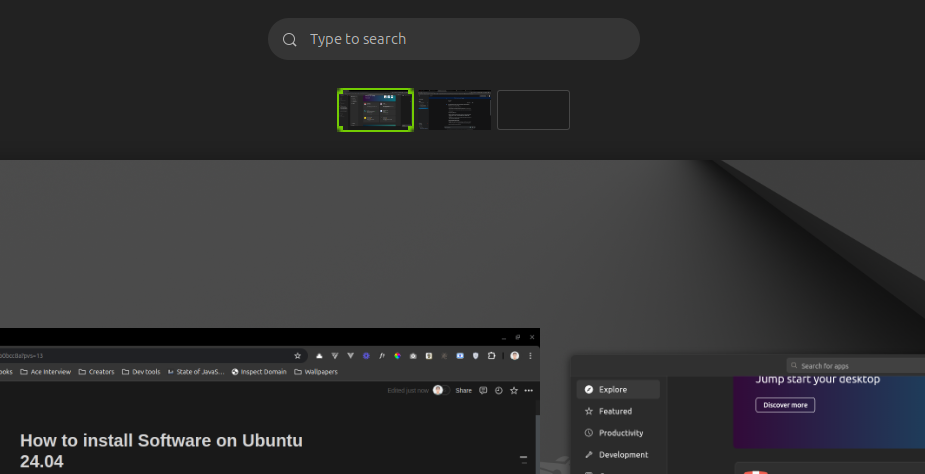
Press the Super key or click on the right top corner of the screen,
Step 2:
Search App Center.
Search your favorite Software in from the search bar.
Using Package manager
There are multiple package managers available on Ubuntu, but we will focus on the two official ones: apt and snap. apt is the default tool included with the system. Here is how to use it:
Step 1:
Open the terminal using Ctrl + Alt + T.
Step 2:
Install the package. The structure is sudo apt install <package_name>, eg;
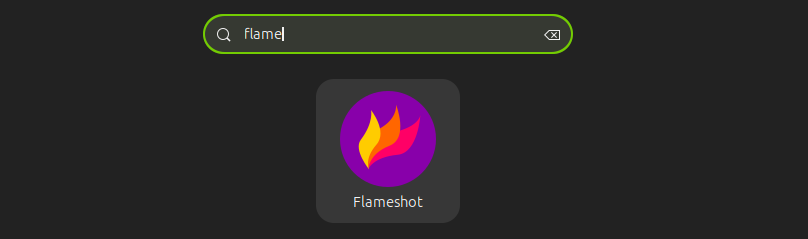
sudo apt install flameshot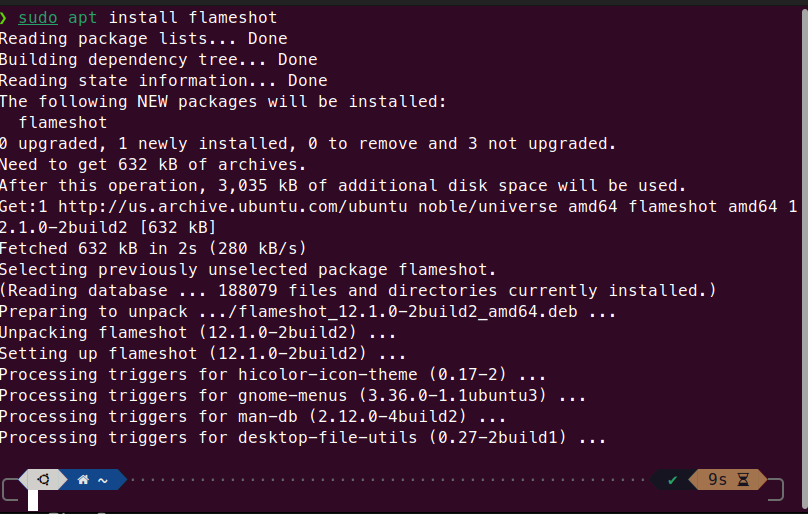
And yay!!!
Using snapd
Same procedure but using snapd. I can install any package from snapcraft io store using this command. Snapcraft is an official package store by canonical. It is the 2nd most easy way to install packages in Ubuntu 24.04. eg;
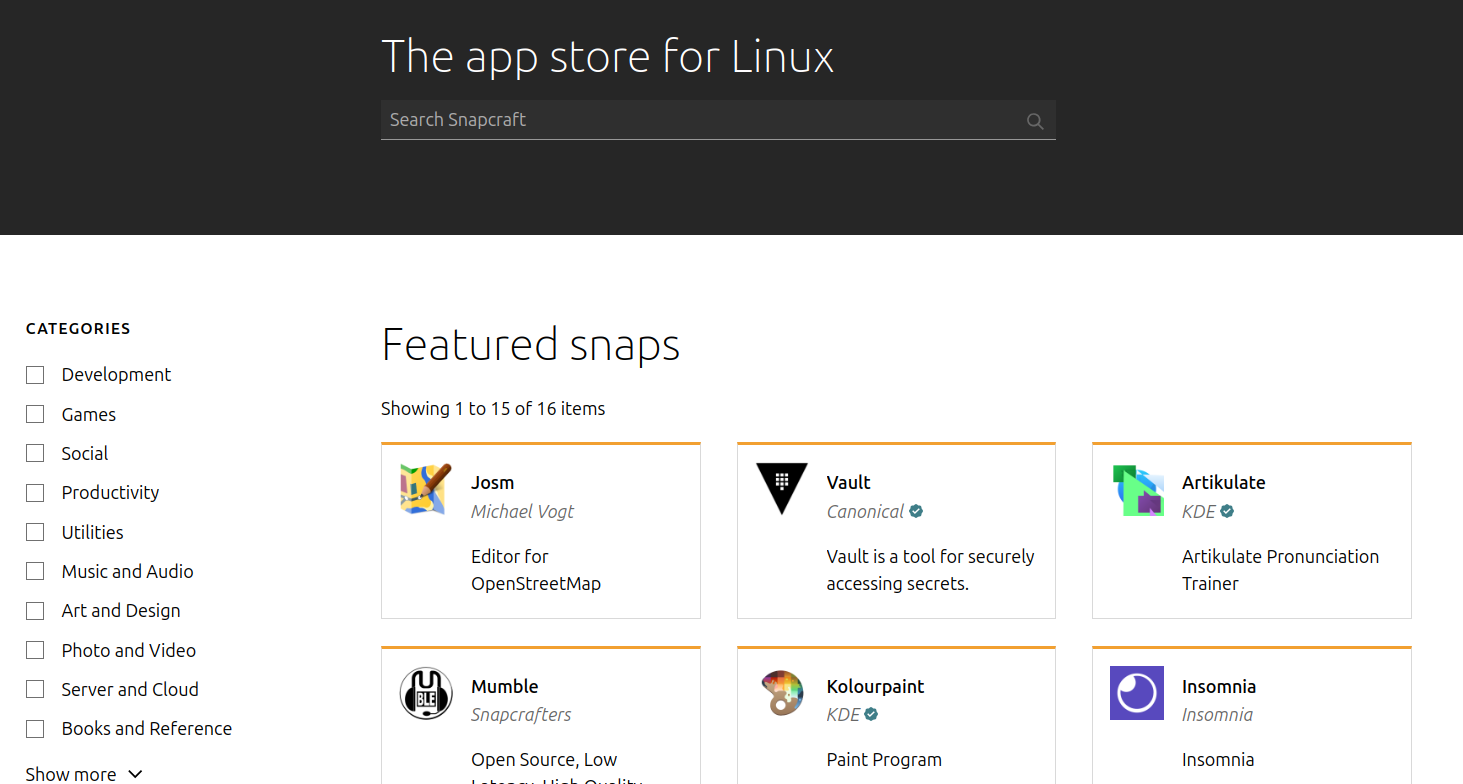
Let’s install Vault, I have not used Vault by the way. Let’s install it and explore.
Command: sudo snap install <package_name>
sudo snap install vault

Using Flatpak
Make sure have installed the Flatpak on your system. You can find a detailed guide in my previous article.
For example, I have to install GIMP, I can use the following command;
flatpak install flathub org.gimp.GIMP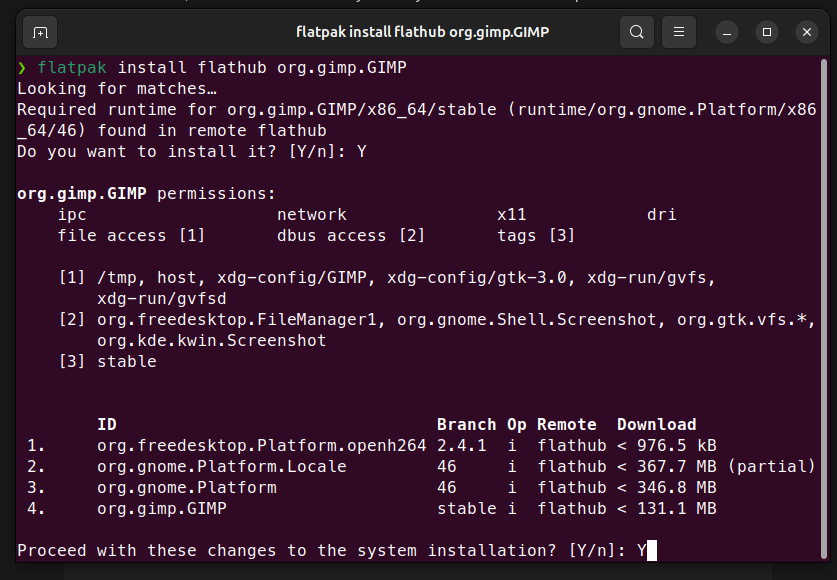
Manual Installation
It is manual and rough, but flexible too for power Linux users. There are further two ways;
- Using dpkg
- Using tar
Using dpkg
Used to install downloaded .deb packages. But make sure they are the latest and correctly downloaded. Here’s the breakdown
sudo: full root access
dpkg -i: to extract and install the binaries into the system
location/path: Location or path of the .deb file
After summing up, the command should be following
sudo dpkg -i <package_name.deb>- Packages ended with .deb
- They should be the latest and correct deb packages
- The source of downloading should be authentic, as a security measure
A valid deb file and terminal with root access are required; I have downloaded Zoom already in .deb format. It’s a valid deb file. So
cd Downloadssudo dpkg -i zoom_amd64.deb- Run it
- May ask for the password: provide your system password for the root user
- May ask for permission: enter Y and press Enter
That’s all and here is my result;
Using Tar/Untar
I found it the most complex option to install Software on Ubuntu 24.04. I usually avoid it. But sometimes I need to do it, so how I do it;
Step 1: Download Software
Download the file available usually on the Software homepage or GitHub release page in tar.gz format. Choose a destination upon downloading, Downloads directory is usually a location.
I have downloaded Obsidian in tar.gz format. Let’s extract in the next step.
Step 2: Extract archive
Open a terminal window (Ctrl+Alt+T). Navigate to the directory containing the downloaded archive using the cd command. For example, if it’s in Downloads, type;
cd Downloadstar -xf <archive_name.tar.gz>Example;
Confirm the existence of the package. One way is, I am already in Downloads
ls -lta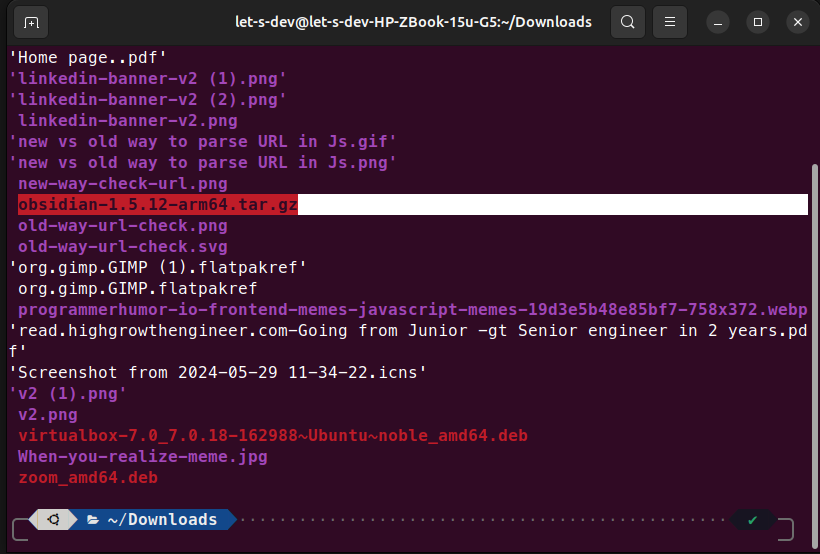
Extracting it
tar -xf obsidian-1.5.12-arm64.tar.gzStep 3: Running the software
Enter the extracted folder, like this. And locate the file highlighted (obsidian)
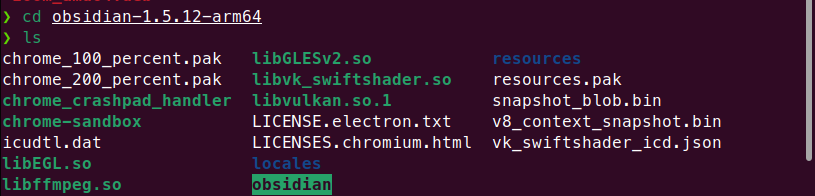
Make it executable. Using
chmod +x ./obsidianThen run it by running
./obsidian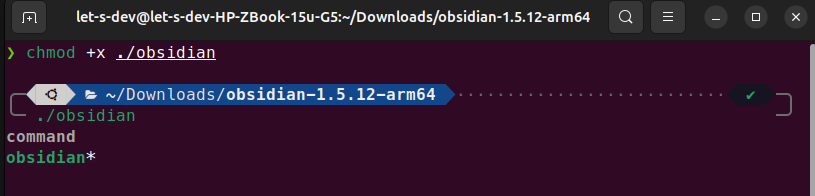
And it’ll open the program.
It was a bit complicated but interesting too. Usually, this format is usable for a single run. Because by default it doesn’t add the Software to Applications.
Choosing the Right Method
Which method should you pick? It depends on the application and what you are comfortable with:
- For beginners, the Ubuntu App Center is the easiest starting point.
- For developers and terminal users,
aptandsnapprovide fast installs and clear logging if something goes wrong. - Flatpak is a solid alternative when an application isn’t available in the standard repositories or Snap Store.
- Manual installation (
dpkgortar.gz) gives you full control, but requires handling dependencies and desktop launcher shortcuts manually.
I tend to reach for apt and dpkg first. Whichever route you take, Ubuntu gives you plenty of flexibility to manage your workstation.
