How I Finally Got Gemini CLI Working With Google AI Pro (And Why It Took Way Too Long)
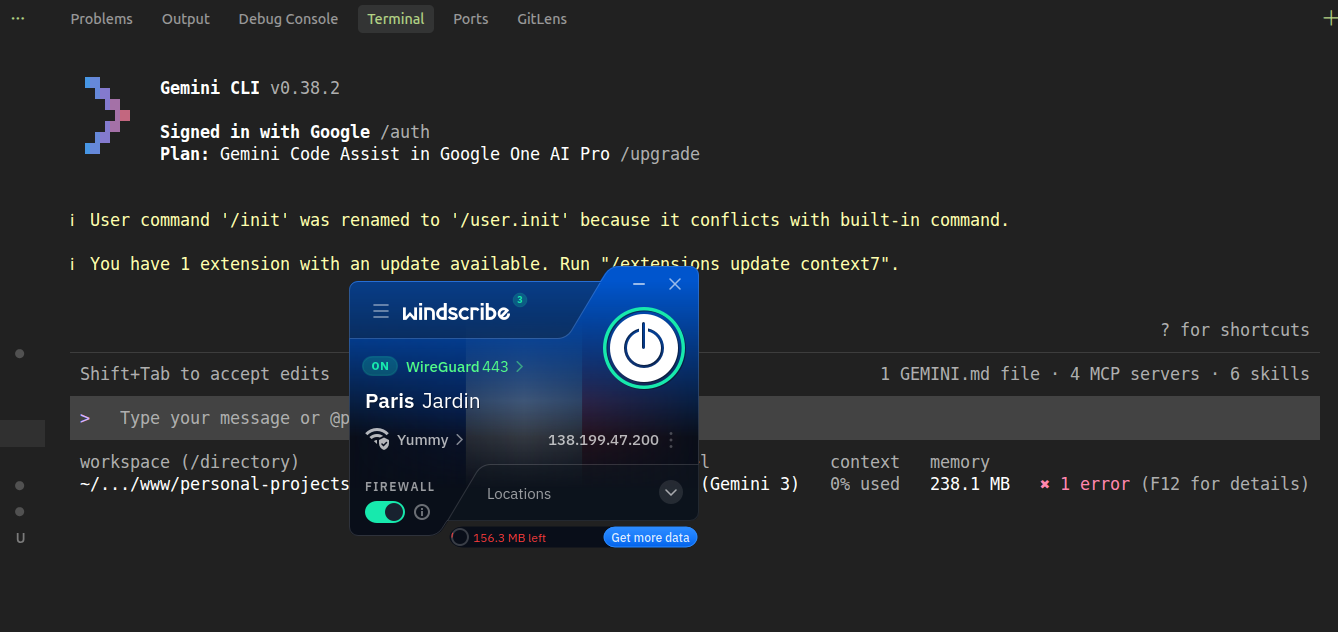
I am not going to sugarcoat this. Getting Gemini CLI to recognize your Google AI Pro subscription on Linux is, objectively, a mess. Google built a tool that is supposed to work with a subscription they sell, and then made the login flow incompatible with it. That is not a skill issue. That is a Google issue.
But it does work. There are two ways. Here is exactly what I did, so you don’t have to spend three hours in the same rabbit hole.
Who This Is For
You have a Google AI Pro (or Google One AI Premium) subscription. You are on Linux. You run gemini, you pick “Sign in with Google,” the browser opens, you log in, and then you get this:
Failed to exchange authorization code for tokens: request to
https://oauth2.googleapis.com/token failed, reason:
Or this:
The following products are not yet authorized to access your account:
Gemini CLI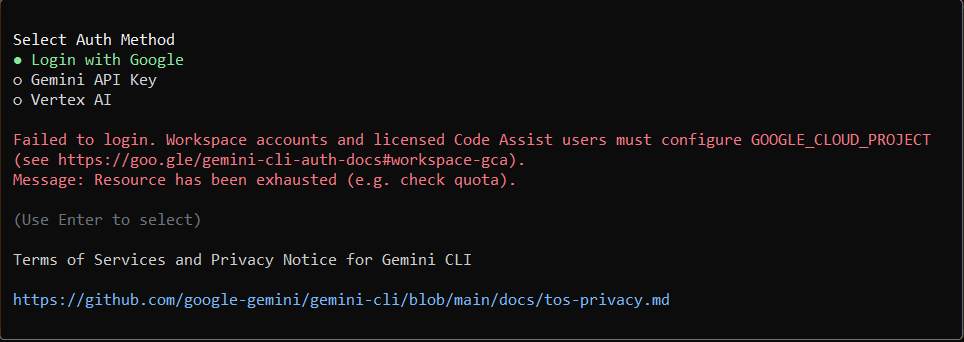
Yes, your subscription does include Gemini CLI. Google’s own page says so. The tool just can’t figure that out on its own.
Why This Happens
When Gemini CLI tries to log you in, Node.js, the runtime it uses, needs to make a network call to oauth2.googleapis.com/token to finish the handshake. In many regions, this call gets blocked at the ISP level. The browser part works fine. The token exchange part dies silently.
There are two ways around this. Pick whichever fits your situation.
Method 1: VPN Login (Simplest)
This is the most straightforward way. You connect a VPN once to complete the login, then disconnect. The token gets cached locally and your day-to-day usage works without the VPN.
The catch: Every time Gemini CLI needs to re-authenticate (such as a new terminal session where credentials expired or a Node version switch), you need the VPN again for that single login step.
What you need
Any VPN works. Windscribe has a free tier that is generous enough. The server location matters: use a European or US server. A French server (Paris, Jardin) worked reliably in testing.
Steps
- Connect your VPN to a European or US server.
- Run
geminiand pick option 1 (Sign in with Google). - Complete the browser login with your AI Pro account.
- Once you see the Gemini CLI prompt, disconnect the VPN.
- The rest of your session works without VPN. Send as many messages as you want.
That’s it. Credentials get saved to ~/.gemini/oauth_creds.json and ~/.gemini/google_accounts.json. Next time you open a terminal and run gemini, it picks them up automatically, with no VPN needed unless it asks you to log in again.
When it asks to re-login
Connect VPN, complete login, disconnect. Takes about 30 seconds.
Method 2: gcloud Bridge (No VPN Required)
This method uses the Google Cloud CLI (gcloud) to handle authentication instead of Gemini CLI’s own broken OAuth flow. gcloud uses Python and redirects through localhost:8085, which doesn’t get blocked.
The catch: More setup steps up front. You also need to refresh a token manually each session, or set up an alias to do it automatically.
Step 1: Install gcloud
curl https://sdk.cloud.google.com | bash
exec -l $SHELL
If apt can’t find the package:
sudo snap install google-cloud-cli --classicStep 2: Log in with gcloud
Sign in with the Google account that has your AI Pro subscription.
gcloud auth login
gcloud auth application-default login
Both commands matter. The first is your user login. The second creates Application Default Credentials that Gemini CLI can pick up.
Step 3: Find your Gemini project
gcloud projects listLook for a project starting with gen-lang-client-. That is your AI Studio project. Copy that project ID.
Step 4: Enable the Code Assist API
This is the step most tutorials miss. Gemini CLI uses cloudaicompanion.googleapis.com, not the generic Generative AI API. If it is not enabled, you get a 403 even after a successful login.
gcloud services enable cloudaicompanion.googleapis.com --project YOUR_PROJECT_IDWait about 60 seconds.
Step 5: Check for conflicting settings files
Gemini CLI can have multiple settings.json files: one global, and one per project folder. If any say "selectedType": "vertex-ai", it overrides everything else.
find ~ -name "settings.json" -path "*gemini*" 2>/dev/nullOpen any that you find and change vertex-ai to oauth-personal. Also verify the global one:
cat ~/.gemini/settings.json | grep -A3 "auth"Should say oauth-personal.
Step 6: Launch with the token injected
export CLOUDSDK_AUTH_ACCESS_TOKEN=$(gcloud auth print-access-token)
export GOOGLE_CLOUD_PROJECT=YOUR_PROJECT_ID
gemini
Also unset these if you ever set them before:
unset GOOGLE_CLOUD_LOCATION
unset GOOGLE_GENAI_USE_VERTEXAI
Making it easier with an alias
Tokens expire after about an hour. Add this to your ~/.bashrc:
export GOOGLE_CLOUD_PROJECT="YOUR_PROJECT_ID"
alias gemini-start='export CLOUDSDK_AUTH_ACCESS_TOKEN=$(gcloud auth print-access-token) && gemini'
Then just type gemini-start each time. It grabs a fresh token automatically.
source ~/.bashrcHow to Verify It Is Using Your Pro Subscription
Once inside the CLI, run:
/aboutLook at the Tier line. You want:
Tier Gemini Code Assist in Google One AI ProIf that line is missing or says Free, the project is wrong or the API is not enabled on it.
Things That Don’t Work (And Why People Keep Trying Them)
Using a Gemini API key from AI Studio: This puts you on the developer free tier, not your Pro subscription. Your AI Pro limits won’t apply.
Setting GOOGLE_GENAI_USE_VERTEXAI=true: This routes requests through Vertex AI billing. Completely separate from Code Assist. You will get charged separately.
Clearing ~/.gemini and trying again: Wipes your conversation history and does not fix the underlying network block.
The IPv4 fix (NODE_OPTIONS="--dns-result-order=ipv4first"): Rarely helps. The failure is usually a regional block, not a DNS issue.
Quick Comparison
| Method 1 (VPN) | Method 2 (gcloud) | |
|---|---|---|
| Setup time | 2 minutes | 15 minutes |
| VPN needed | Only for login | Never |
| Token management | Automatic | Manual refresh or alias |
| Re-login friction | Connect VPN, done | Run export command |
| Works without gcloud | Yes | No |
Both methods get you on your actual AI Pro quota. Pick whichever fits how you work.
